Cash Discount Program: What It Is and How to Implement It

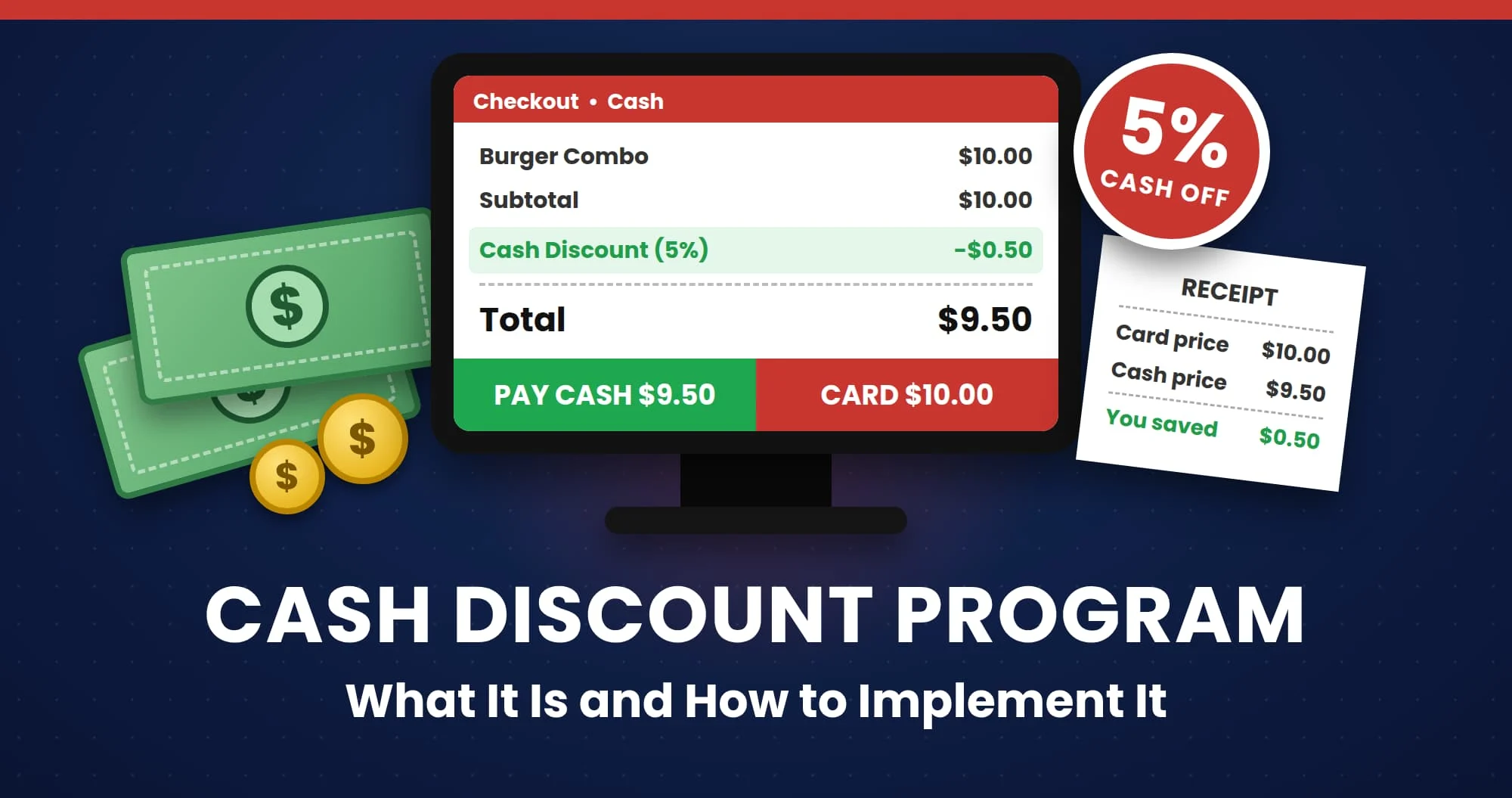
Table of Content
Cashless payments have become important for restaurants and retailers. It reduces the need to handle cash, simplifies payment management, and speeds up checkout for customers.
Cashless payments often rely on cards like credit and debit cards. Card purchases also add costs for businesses, such as merchant fees, processing fees, chargeback fees, and more.
78% of U.S. shoppers prefer to pay with cards over cash for in-person payments.
For small businesses, processing costs can squeeze profit margins, so retailers and restaurants implement cash discount programs to encourage customers to pay cash rather than use cards.
What is the Cash Discount Program?
A cash discount program means offering a discount to customers on the posted price of an item when they pay with cash. This encourages customers to make cash payments and helps merchants reduce processing costs.
In a cash discount program, the product’s posted prices include payment processing fees and item prices. Customers who pay cash are eligible for this discount. Implementing a cash discount offers various benefits, such as reduced processing fees and card fees.
In 2024, U.S. credit card companies earned $148.5 billion from merchant swipe fees, costing families about $1,200 annually.
Similarly, using Quantic POS, businesses can easily apply cash discounts at checkout and display cash and card pricing on receipts. This helps merchants reward customers who pay with cash.
Quantic POS Cash Discount Program
With Cash Discount enabled, an automatic discount will be applied anytime someone pays in cash. There is no need to apply the discount manually. At the close of the transaction, the pricing will be on the screen, and a window will inform the staff member that a discount has been applied and will show the new amount due.
How Does It Save Your Money?
The most common way to utilize Cash Discount is to increase your catalog prices by the discount percentage. This way, if someone pays with a card, they’ll be taking care of the fees you would have to pay.
How Is It Shown to the Customer?
An itemized receipt can always be printed that will show the Cash price and the card price for the customer.
How Is It Displayed on the Receipt After Payment?
The receipt will provide a breakdown of the information and the amount they saved by paying in cash and saving on credit card fees.
Won’t Updating Prices Take Too Long?
With Quantic POS’s free price editor feature, you can make bulk updates to pricing without having to go item by item. Instead of using the price editor in the back office portal, select each item in the category and increase it by the percentage of your discount.

Benefits of Cash Discount Program
Here are some important benefits of a cash discount program, such as:
- The cash discount program reduces card processing fees. Businesses minimize expensive credit card fees by adding them to card pricing.
- It encourages customers to pay in cash to receive cash discounts and improve cash flow.
- It provides transparent pricing for customers with receipts showing both card and cash prices.
- Quantic applies the cash discount program automatically during the checkout process.
- Reduce exposure to card-related disputes with fewer card transactions.
- Adding a cash discount program helps to protect profit margins for merchants and reduces processing fees.
How to implement a cash discount for a location?
The Cash Discount program can be enabled from the location’s backend portal. Below are the steps to apply cash discounts for all cash transactions.
Enable the Cash Discount configuration
- Log in to the location’s backend portal.
- Navigate to Settings on the left navigation panel.
- Tap the search box at the top, enter Enable Cash Discount, and tap the option that appears.
- Turn on the toggle switch next to Enable Cash Discount. Once enabled, the switch will appear green.
Setting up a Cash Discount from the backend portal
- Go to the Settings section on the left navigation.
- Click Setup as shown in the screenshot.
- Go to the Cash Discount section on the left.
- Click Edit on the Cash Discount setup screen.
- In the Label field, enter the Cash Discount program name. In this example, we have simply named it a cash discount. You can assign any relevant name to the program.
- Enter the discount percent. In this example, we have set the discount to 10%. This discount will be given to cash-paying customers.
- Once done, please don’t forget to click the Save Changes button.
Note: Please take a moment to revise the item price list to compensate for the cash discount offered. The merchants may increase the prices accordingly.
Taking orders and getting the cash discounts applied
Once you are done with the cash discount setup, you simply need to take an order, and everything else will be taken care of by the backend. Below are the steps that will walk you through the entire process of applying a cash discount to cash payments.
- Log in to the location’s POS app.
- Now you can take customer orders, and if they choose to pay via cash, the preset cash discount will be applied automatically to the order.
- In this illustration, a customer has ordered some items from the Appetizers category and wants to pay via cash.
- The server taps on the Cash button to accept the payment in cash.
- A pop-up appears displaying the cash reward offered and the new balance due; clicking the Continue button applies the cash discount to the order.
- Here is an illustration of how a cash discount will be displayed on the order screen. On the contrary, the cash discount won’t apply if a customer pays via card.
Please note that when a cash discount is enabled and a customer wants to split the transaction between card and cash, if he pays the partial amount in cash first, the entire balance due will be charged irrespective of the tendered amount. Also, the cash reward will apply to the entire balance due.
Factors to Consider Before Implementing a Cash Discount Program
 9 Best POS Systems for Full-Service Restaurants in 2026