

Retail Inventory Management
With Quantic POS, you can now track your inventory in real time so you know what to reorder and when.
Easily find thousands of items by organizing them in their respective categories.
This is how the inventory page looks in the Quantic Retail backend portal.
Here, Quantic can update inventory count for you, send automatic stock alerts, and generate purchase orders so you’re always stocked.
On the portal, you will see:
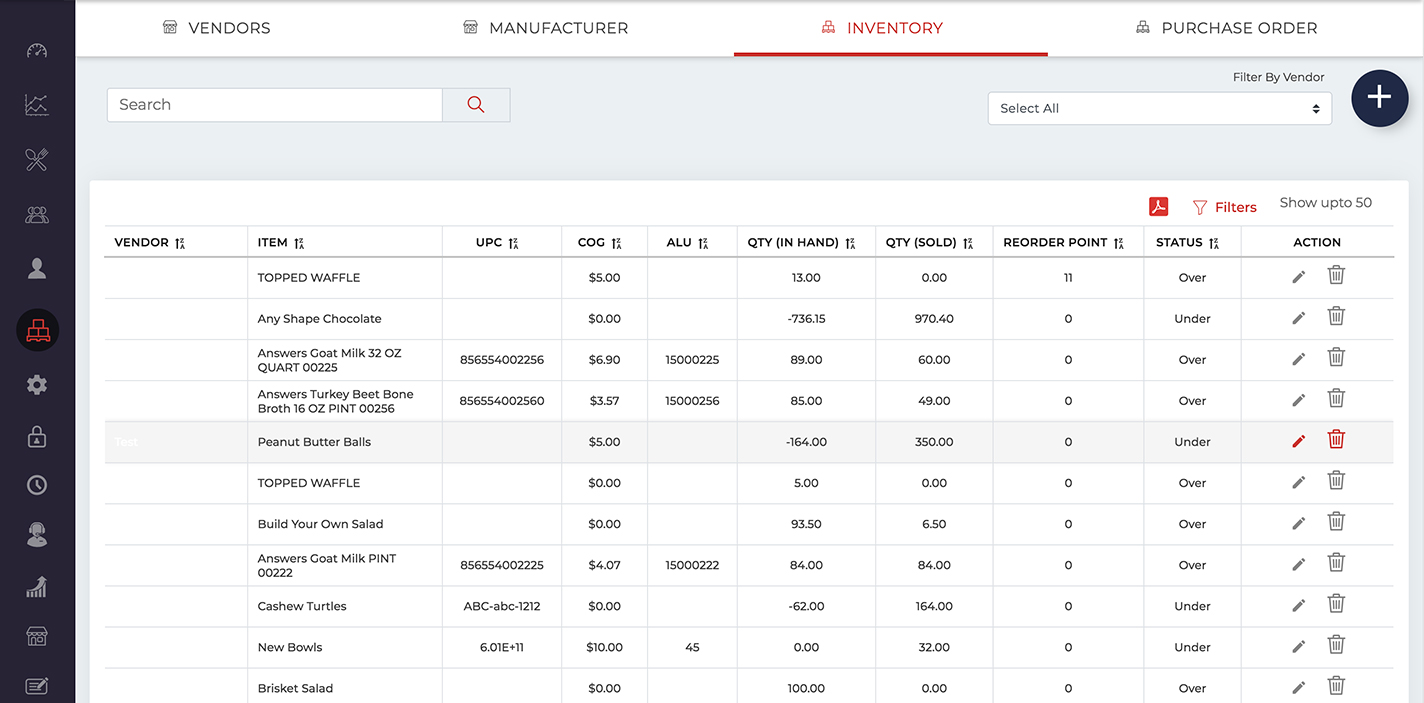
- The item name and vendor name.
- Cost of Goods (COG).
- In-hand quantity of stocks.
- Items sold.
- Reordering point of an item.
- Item status.
Updating Existing Stock and Adding a New Stock
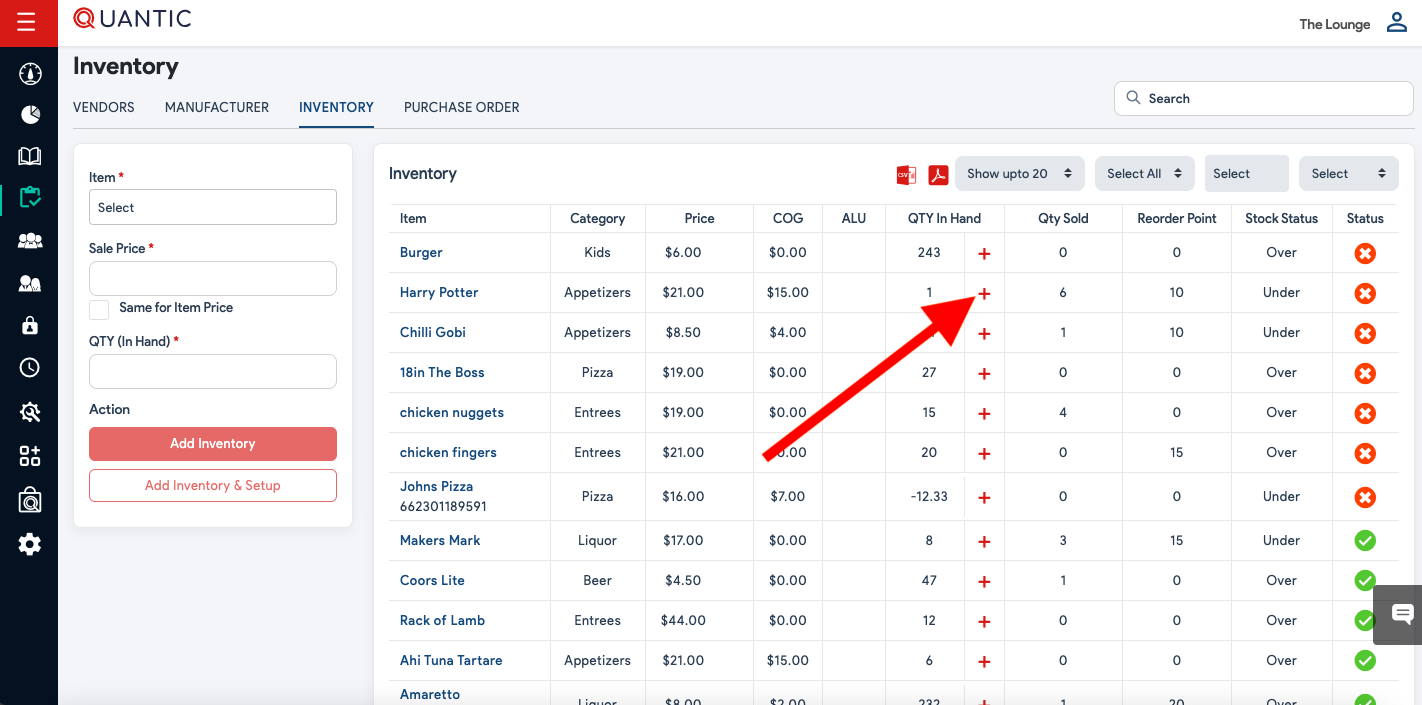
Log in to the Quantic backend portal.
Click on the left navigation bar  , under it, click Inventory.
Now, click the Inventory tab at the top of the screen.
Under Inventory, you can see all the items that are enabled for inventory tracking.
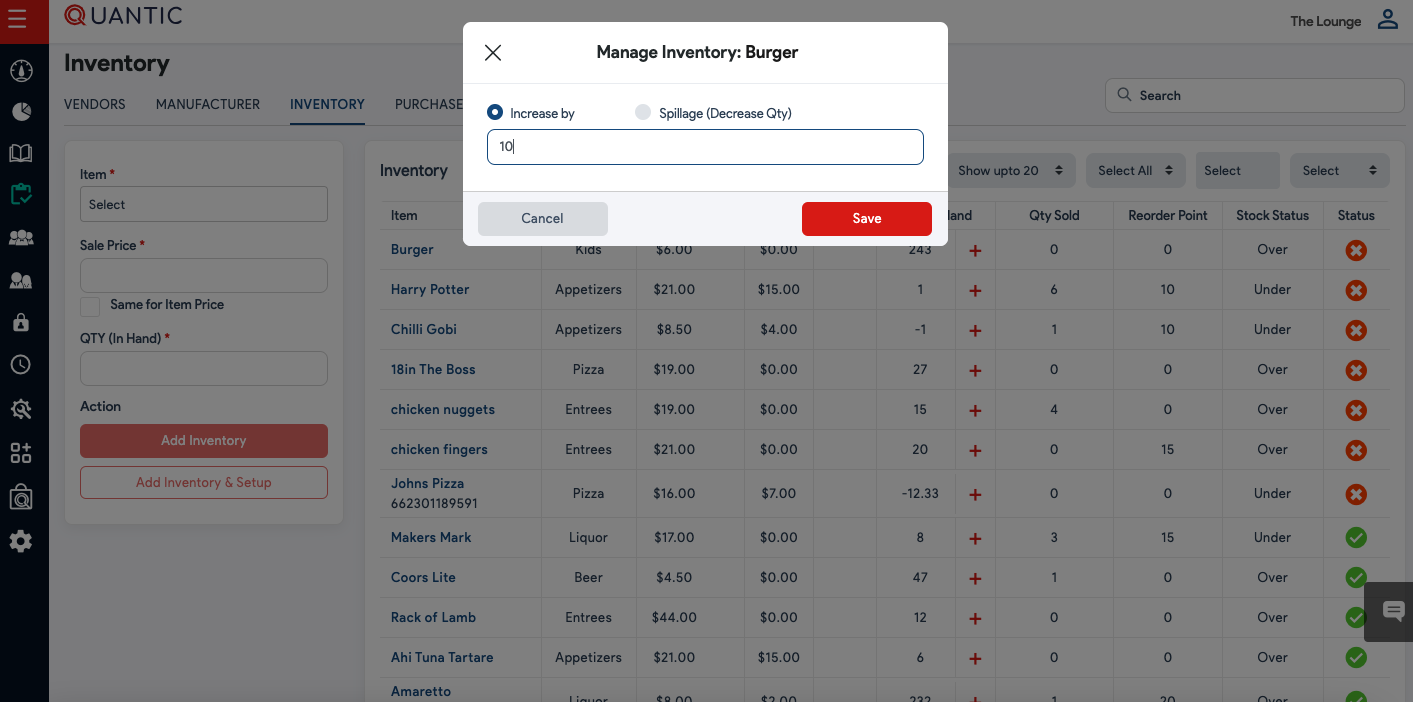
To add a new stock, click  on the right-hand side, and then a pop-up will require you to put details, and finally click
  as shown in the screenshot.
Creating Purchase Orders (PO)
Log in to the Quantic backend portal.
Click on the left navigation bar , and click Inventory  .
.
Click the  tab at the top of the screen.
Click on the top right to start a new PO.
Click the drop-down field below Select Vendor and select the vendor from the drop-down list for whom you want to create a purchase order.
Enter the item that you want to add to the PO and click  .
.
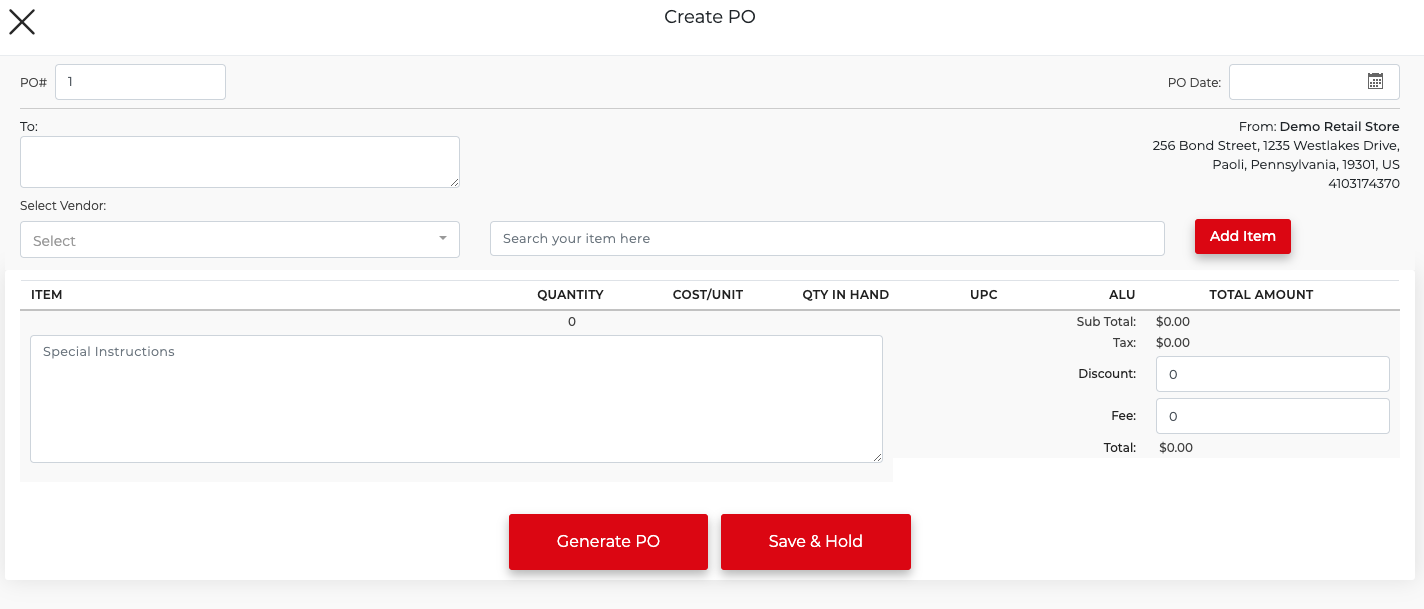
Change the QTY you want to order and add the cost if it doesn’t auto-fill.
Do the same thing for any additional items you want to add to the PO.
Once done, click  as shown in the screenshot.
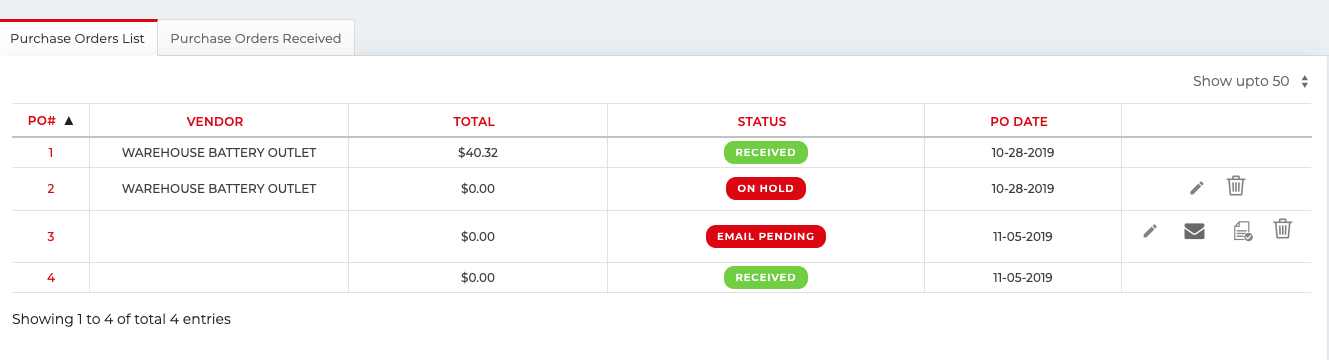
The PO generated can be downloaded as a PDF, and you can email it directly to the vendor.
Now you can check the PO status on the main PO screen as shown in the above screenshot.
A newly generated PO will be marked as Pending under the Status column.
Once the shipment is received, click the  icon corresponding to a particular item to receive the PO.
You can also edit the PO at any time by clicking  the corresponding PO.
Once the order is received, you can update the PO generated, as seen in the screenshot.
For a partial shipment, you can change the QTY Received.
After the final confirmation on the QTY is received, click  .
.
This will automatically update the In Hand Inventory.
If the order is fully received, it will be marked as received on the POS list.
If it was only partially received, it will show Partially Received (in red) under status.