

Retail Order Management
Manage your orders, access the purchase histories, and add discounts to an item with the Order Management feature of Quantic Retail POS.
Adding an Item to the Cart by Scanning
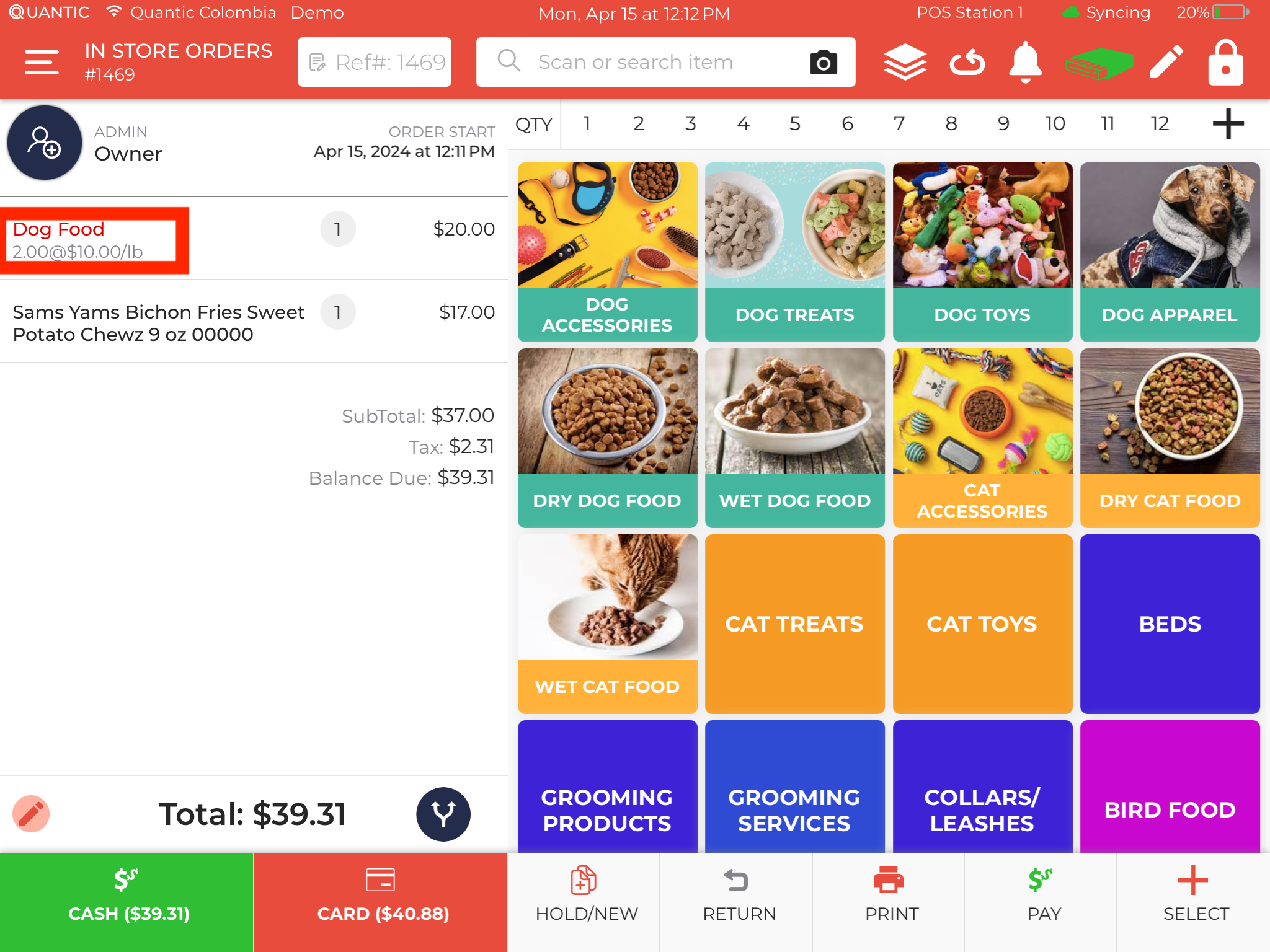
You can quickly add an item to your shopping cart by scanning an item with the help of the scanner.
Log in to your Quantic Retail portal, grab a product in one hand, and scan the barcode with a scanner.
Once done, you will see the rate per item in the cart and the total number of items as well on the left.
Check the above screenshot.
Adding an Item to the Catalog by Scanning
To add a new item quickly to the catalog, tap on  the left navigation bar on your POS, then tap on
  .
.
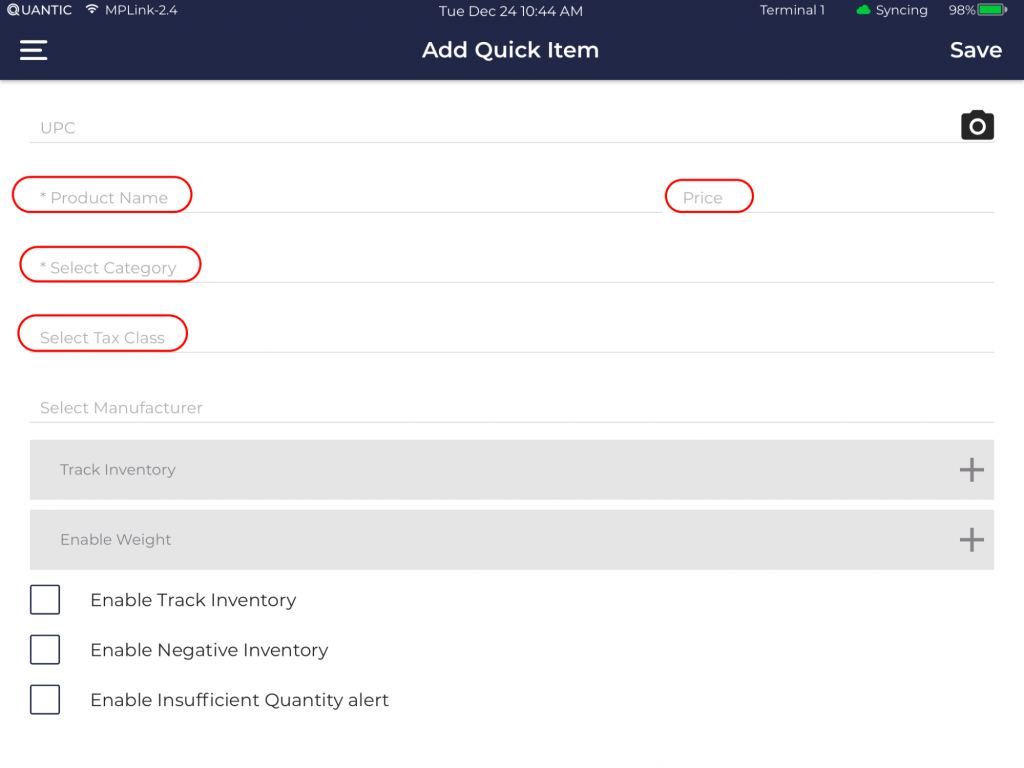
A new pop-up window will appear named Add Quick Item. Here you should-
- Scan the item with the scanner
- Enter the product name
- Price
- Select the category
- Select the tax class
Once done, click Save.
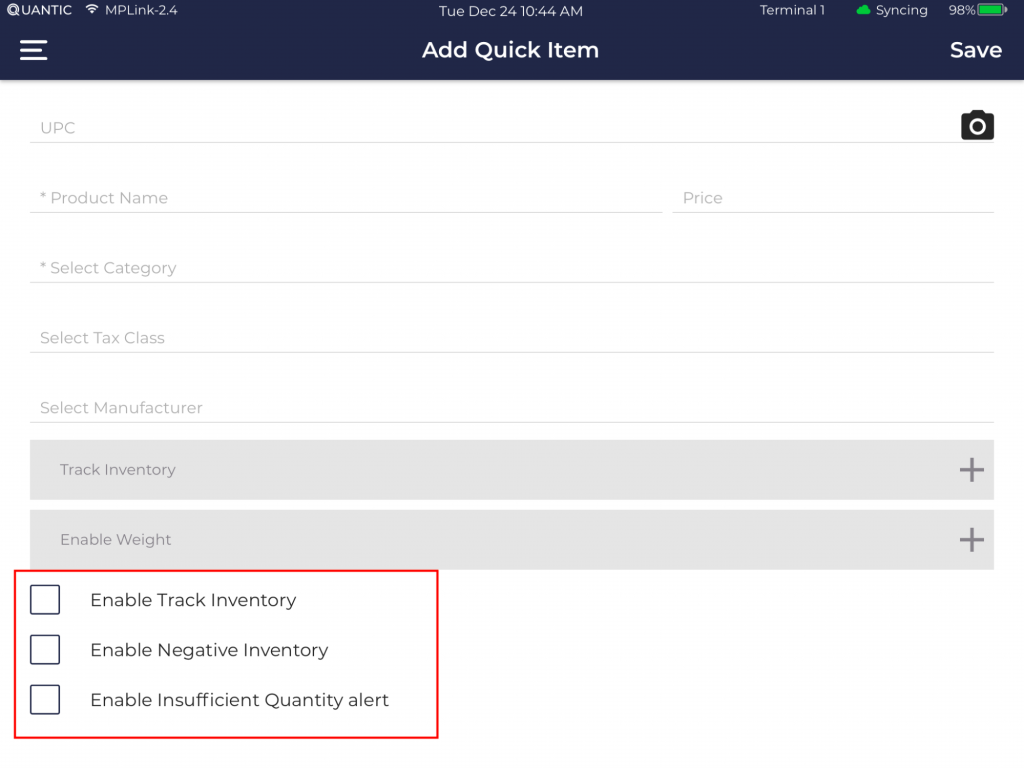
If you wish to track inventory for that item, check the Enable Track Inventory box as seen in the screenshot.
By enabling Negative Inventory, you will be able to sell the product, even when the count of the inventory is less than zero.
If the Insufficient Quantity Alert is enabled, it will alert you to reorder the item before the count reaches zero.
Applying a Discount to the Entire Order
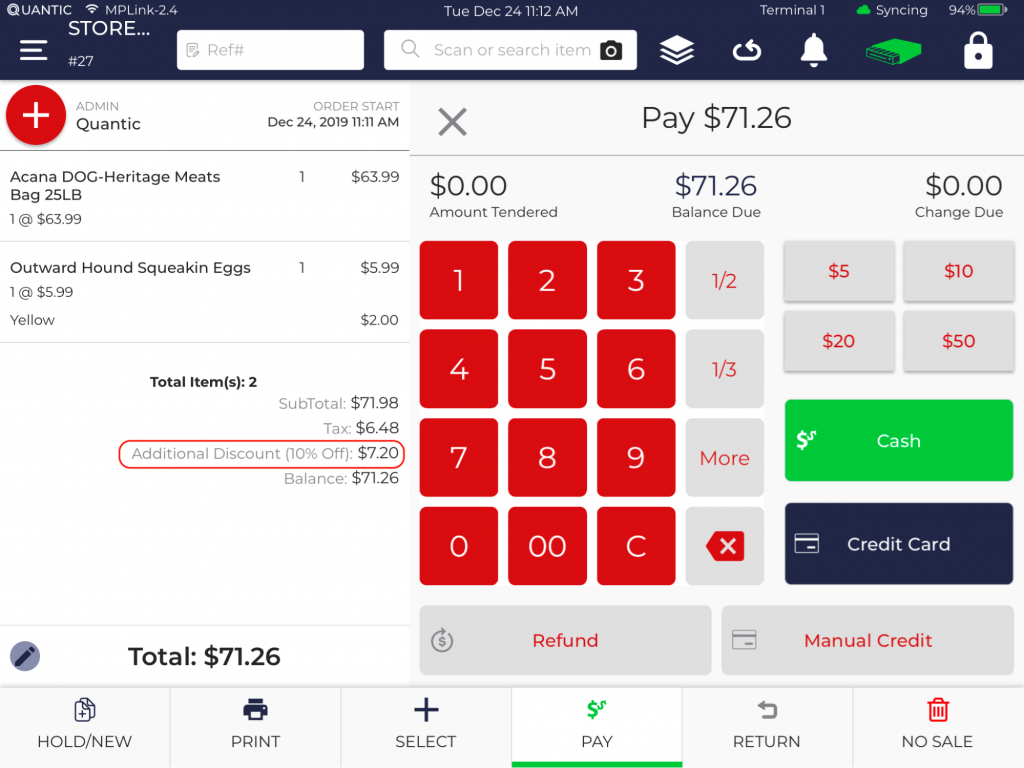
To apply a discount to the entire order, first tap  on the bottom right of the screen.
Tap  on the right side of the screen.
Enter the discount % or discount $, and enter the reason for a discount or select the discount reason from the predefined reasons, if any. Please refer to the above screenshot.
How to Apply Item Level Discount?
Besides applying a discount to the entire order, you can also apply a discount to an item level.
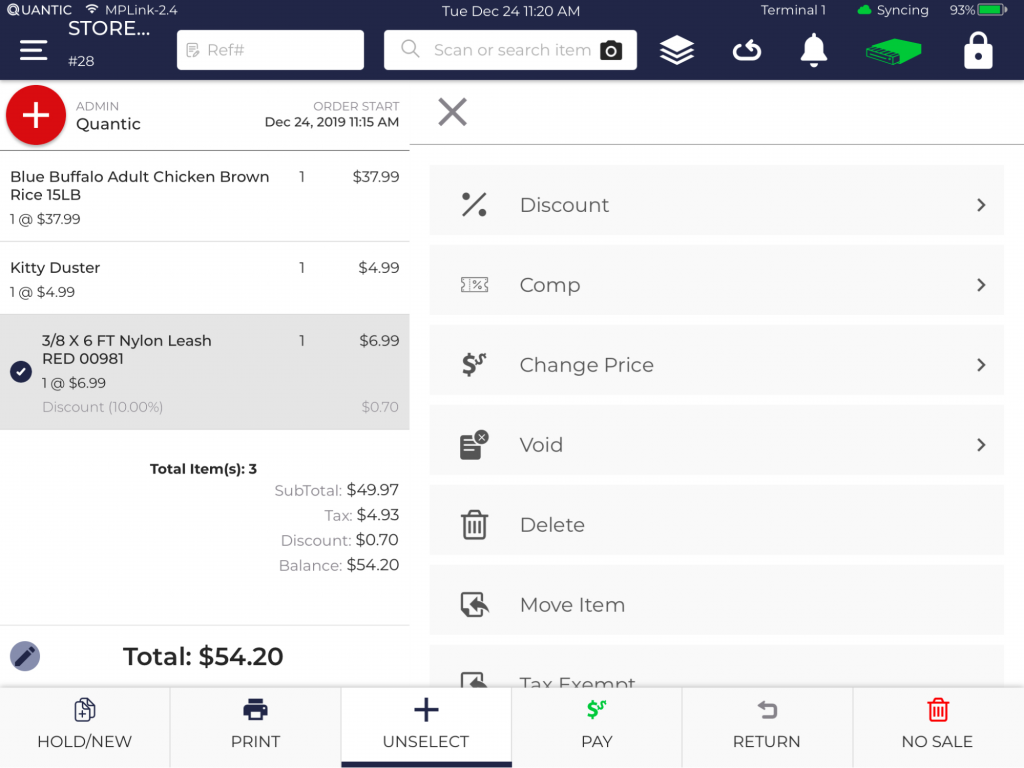
To apply the item-level discount, first tap  at the bottom of the screen.
Then tap on the item that needs to be discounted, and then tap on the button on the right side of the screen.
A new pop-up window will appear, asking you to enter the discount % or discount $ and enter the reason for the discount or select the discount reason from the predefined reasons, if any.
Finally, click Apply on the upper right of the pop-up window.