

Retail Employee Management
Here you can manage all the aspects of labor operations from onboarding the employees to tracking productivity and payroll.
Adding a New Employee
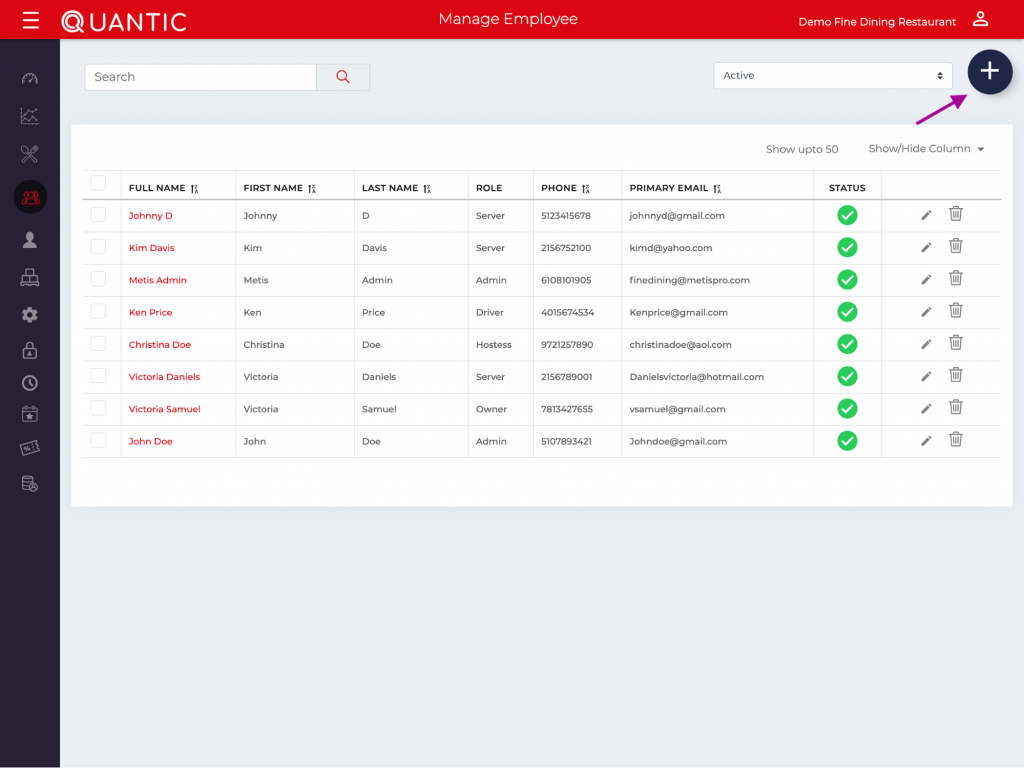
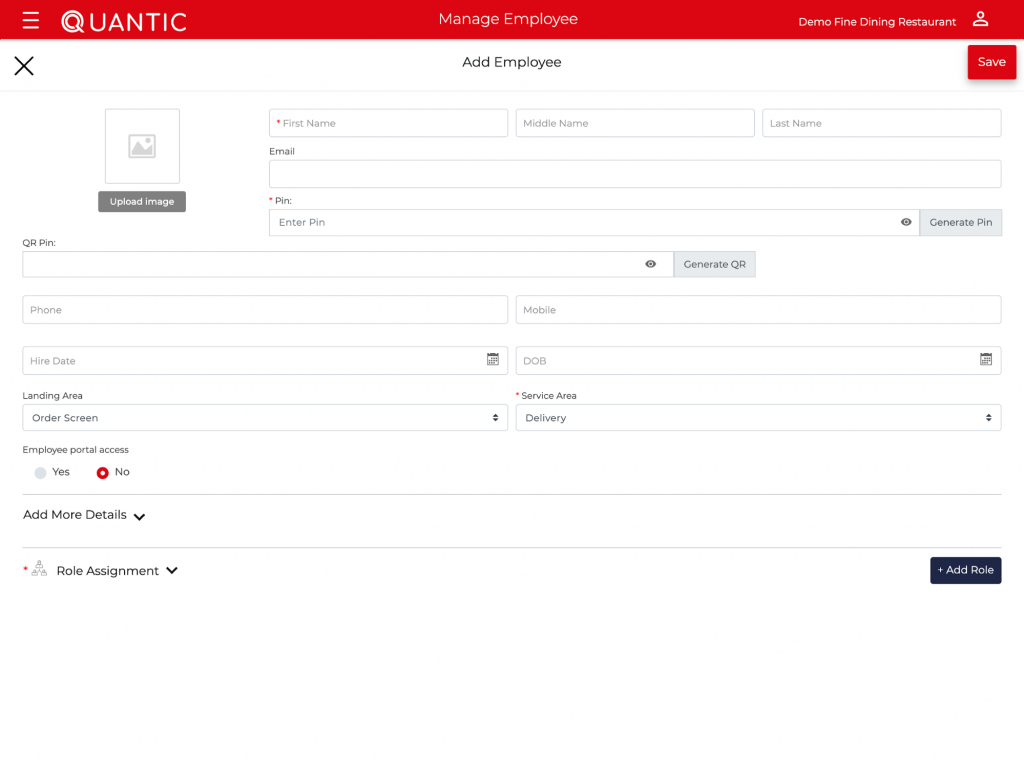
To ADD a new employee, click  Sign in the top right corner and fill in the required information, as shown in the screenshots.
Fill in the Employee details like
- Name
- Date of birth
- Hire date, etc.
Under the Role Assignment field.
Select the Default Role for an employee if there are multiple roles for the same employee and click  .
.
You can also click Yes if you wish to give portal access to that employee.
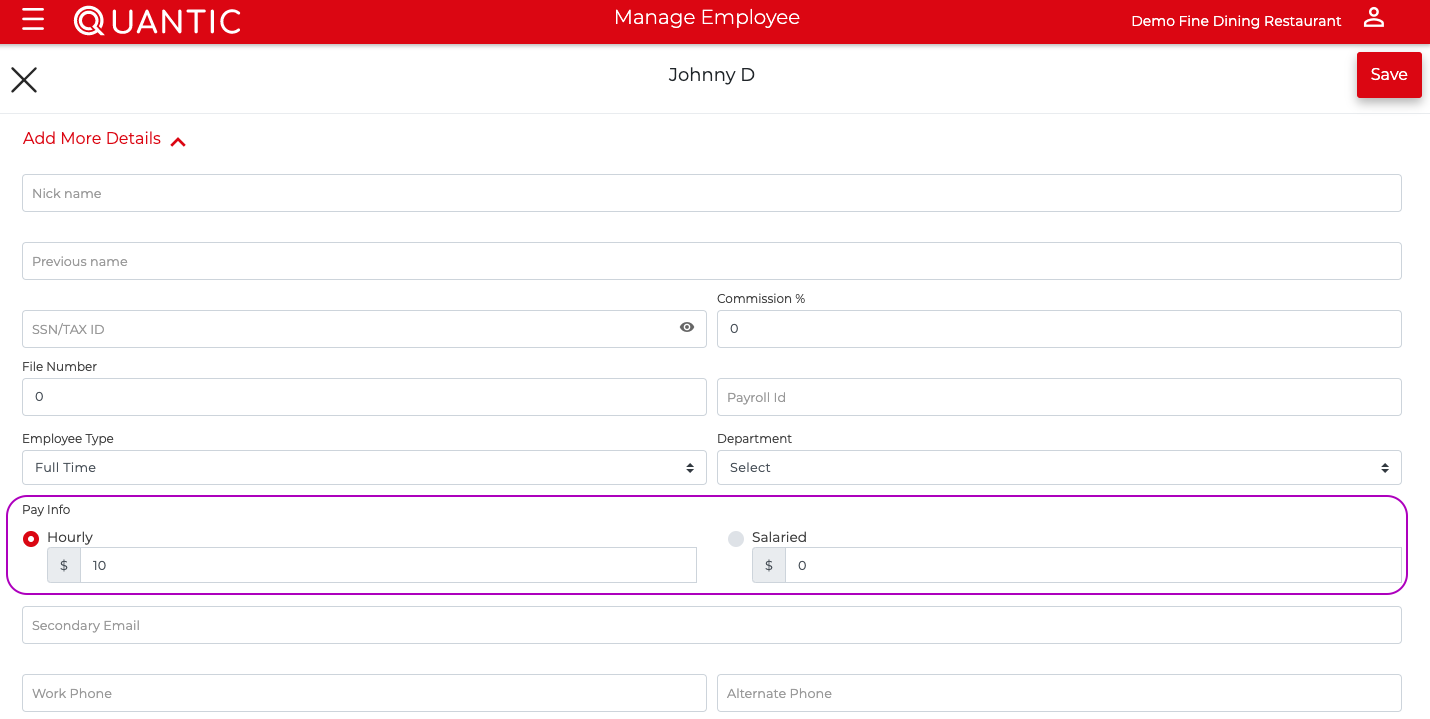
To input payroll information, click Add More Details under Manage Employee, as shown in the screenshot.
You can also generate a Payroll report with Quantic POS.
Giving Portal Access to an Existing Employee
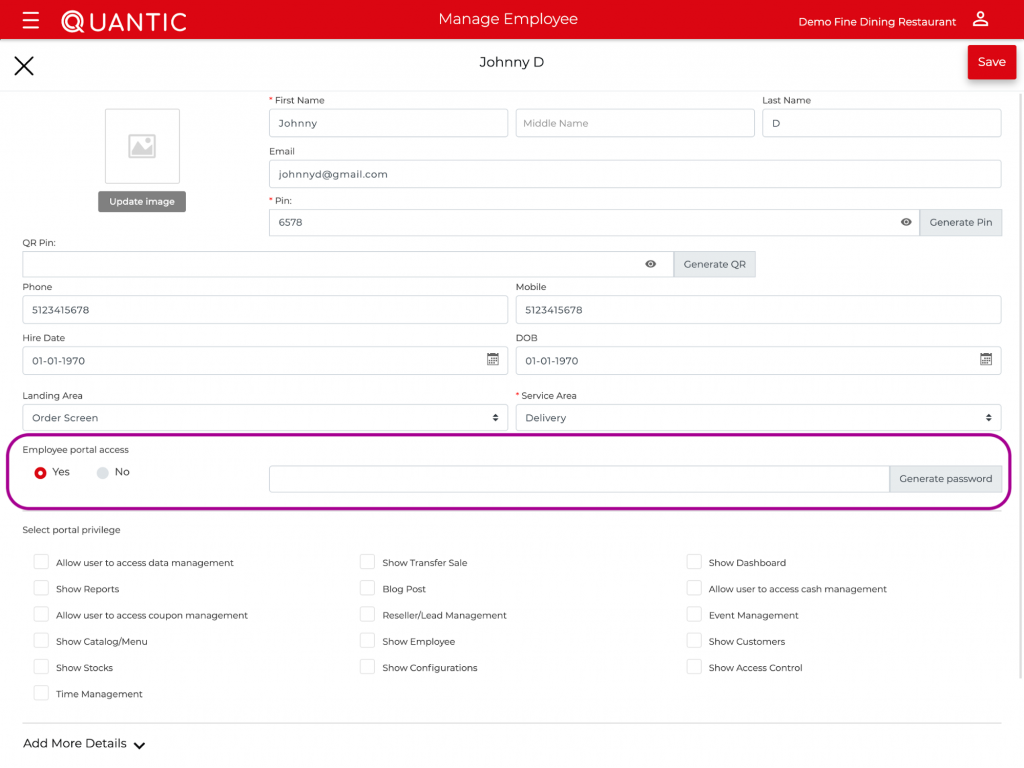
If you want to provide portal access to any existing employee, click the  icon on the bottom right-hand side of the screen.
In the Edit Employee window, select Employee Portal Access as Yes.
When you select Yes, you also have to generate the password for that employee to use the portal.
You can also select the portal privileges for that employee, and finally click as shown in the screenshot.