

Displaying Custom Field
Here, you can display custom fields to add ticket numbers, bill numbers, etc., on payments.
Custom Field allows you to give your marking to the payments for later recall.
Here are the steps to enable the custom field in Charge.
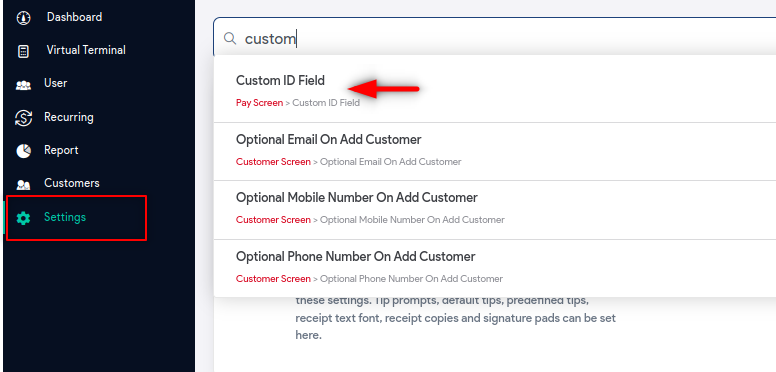
- Go to Settings from the left navigation menu.
- Search Custom ID Field in the search box.
- Tap the Custom ID Field option in the suggestion.

- Enter the label for the Custom ID field. For example, here we have saved Ticket No.
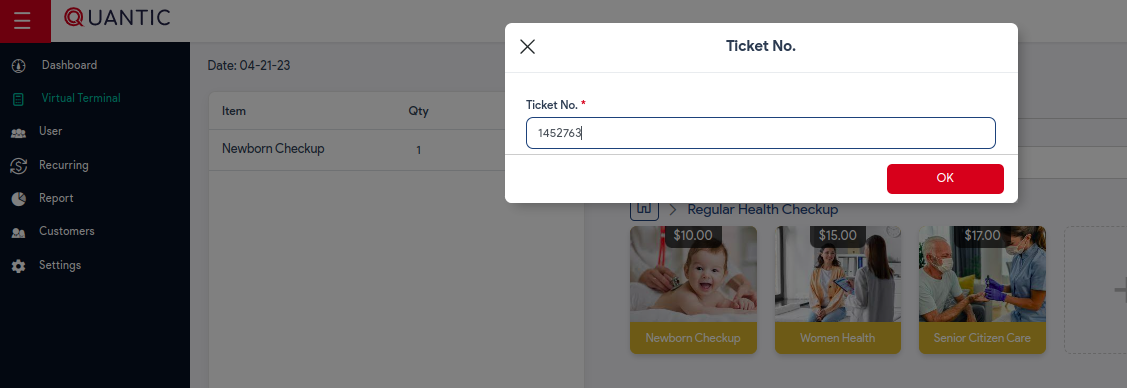
- Now you can add an item to the cart, assign a customer to the order and click Charge.
- You will be prompted to enter the ticket number.
- Once entered, click Ok.
- Select the payment method to pay for the order.
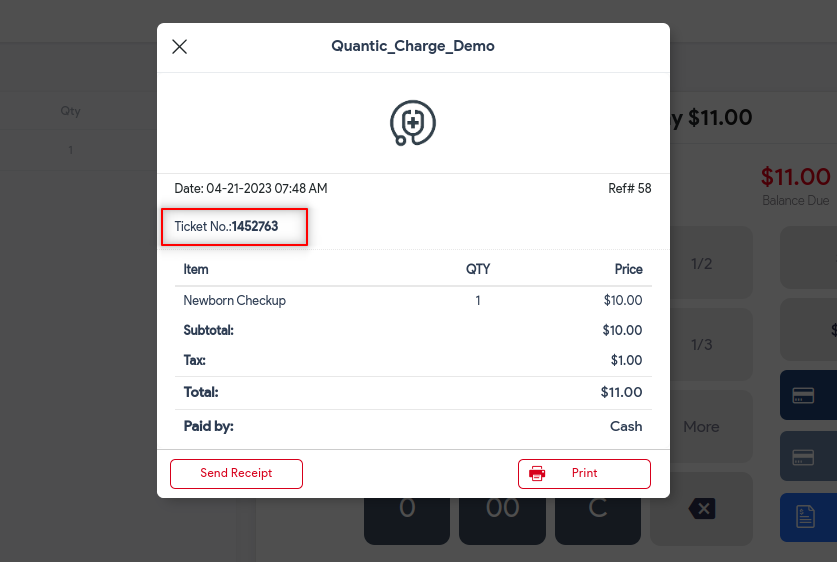
- The receipt will be generated and the ticket number will be displayed on the receipt as well.