

Applying Discounts on Items and Orders
You can apply the item-level discounts or order-level discounts.
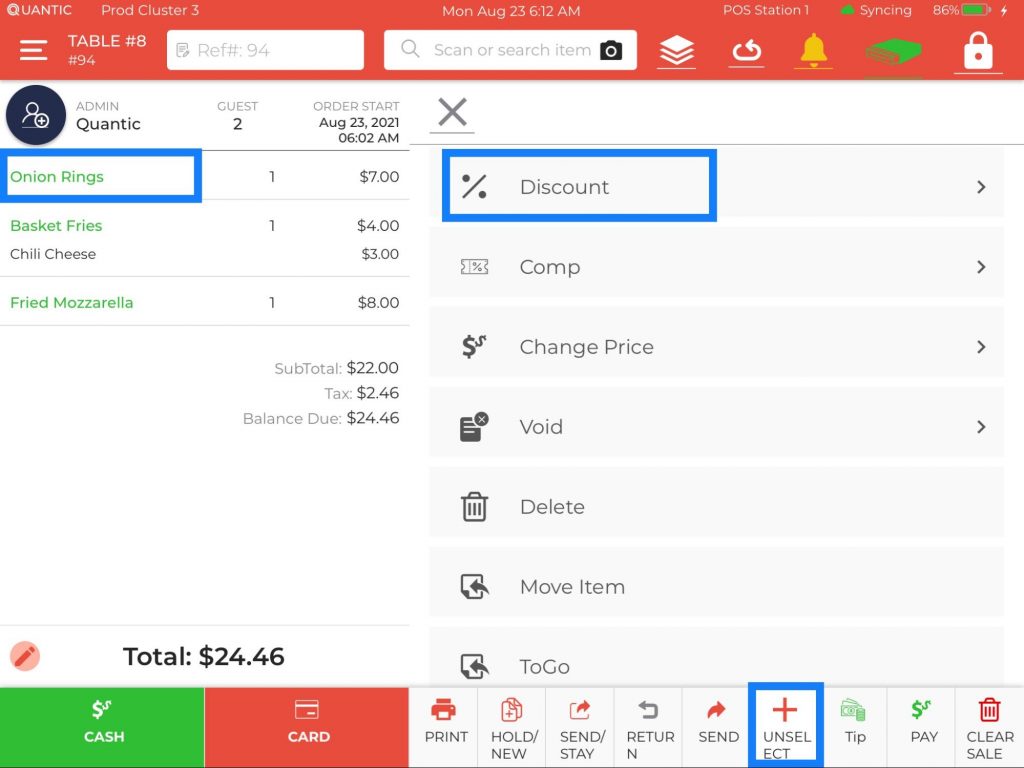
Item-level discount means applying a discount on a particular item, for example, just Onion Rings, as seen in the above screenshot.
And, the order level discount means applying a discount to the entire order.
The following steps describe both of them in detail.
Applying Item Level Discount
- Add items to the cart.
- Click the ➕Select button at the bottom navigation bar.
- Now tap on the item to which you want to apply the discount.
- Click the Discount button on the right.
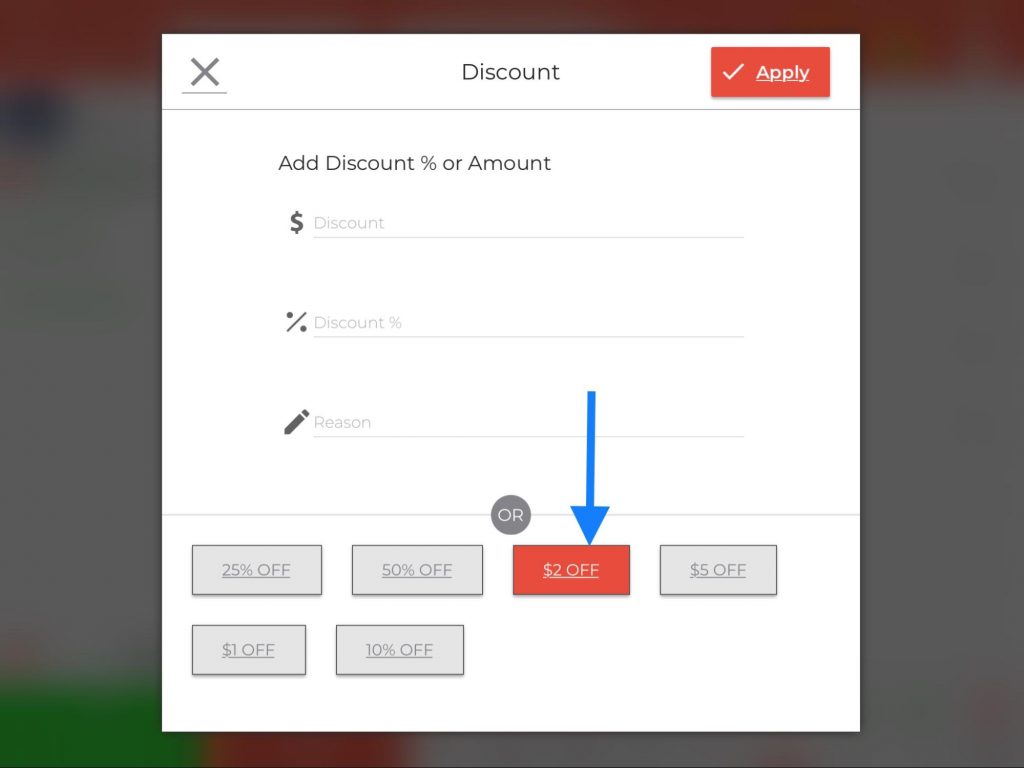
- A new pop-up window will appear asking you to enter the discount.
- Enter the discount % or discount $, and enter the reason for a discount or select the discount reason from the predefined reasons.
- In this example, we have chosen $2 off on Onion Rings
- Once done, click Apply on the upper right of the pop-up window, as shown in the screenshot.
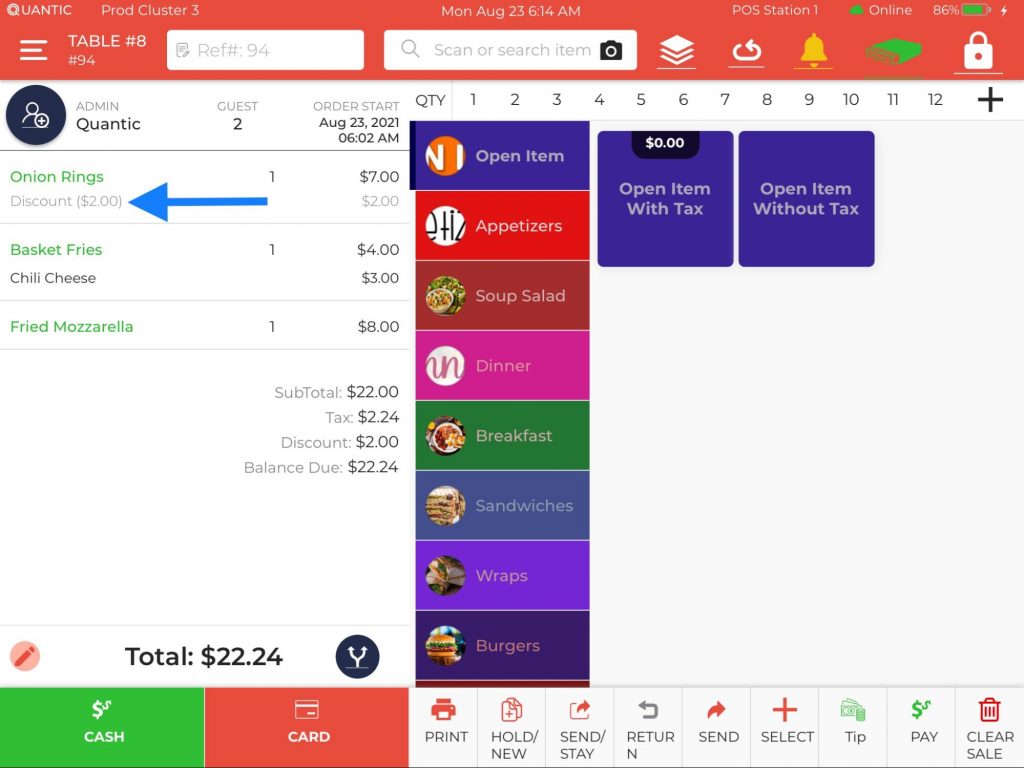
- Here you can see the $2 discount has been applied to the item Onion Rings, and the same has been deducted from the balance due.
- Lastly, you can charge the final amount after a discount from the customer by selecting the Cash or Card option.
Applying Order Level Discount
Similarly, you can apply a discount on the entire order by following the steps below.
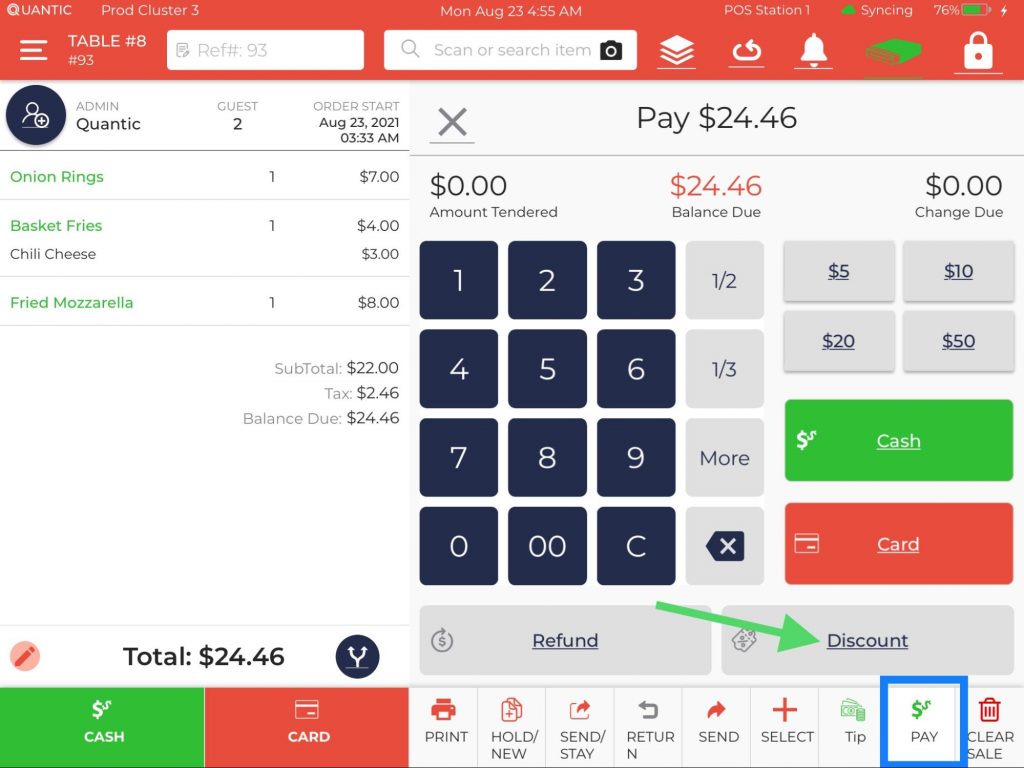
- Add the ordered items to the cart.
- Click the
 button at the bottom navigation bar and then hit the
button as shown in the screenshot.
 button at the bottom navigation bar and then hit the
 button as shown in the screenshot.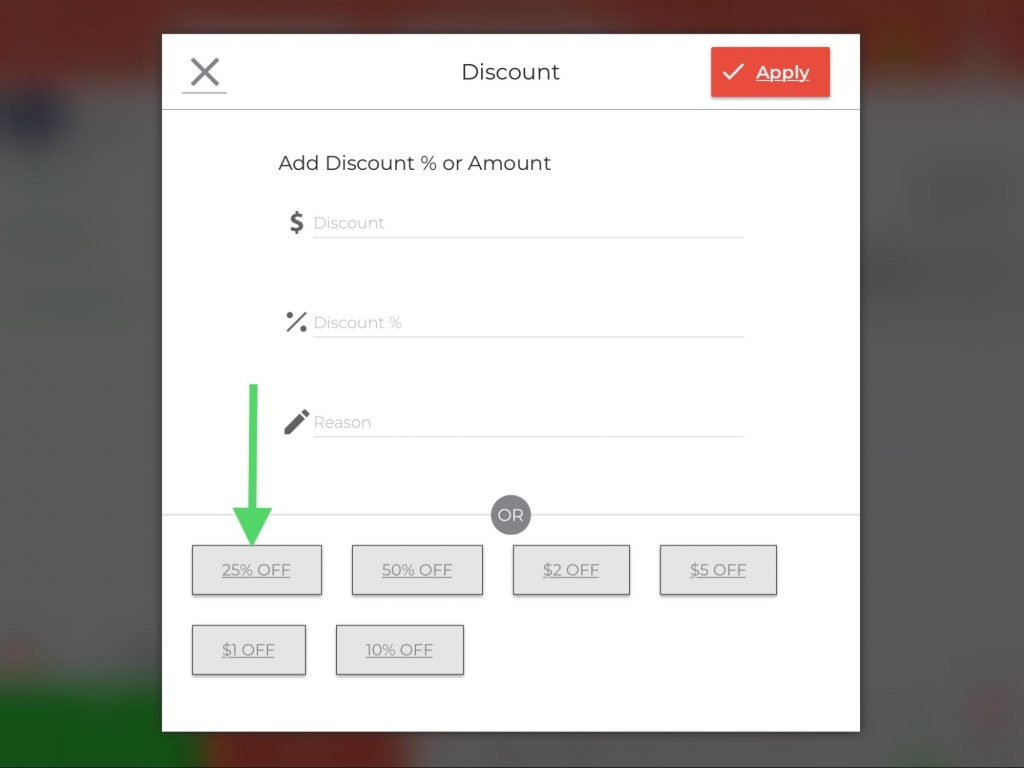
- A new pop-up window will appear asking you to enter the discount.
- Enter the discount % or discount $, and enter the reason for a discount or select the discount reason from the predefined reasons.
- In this example, we have chosen 25% off.
- Once done, click Apply on the upper right of the pop-up window as shown in the screenshot.
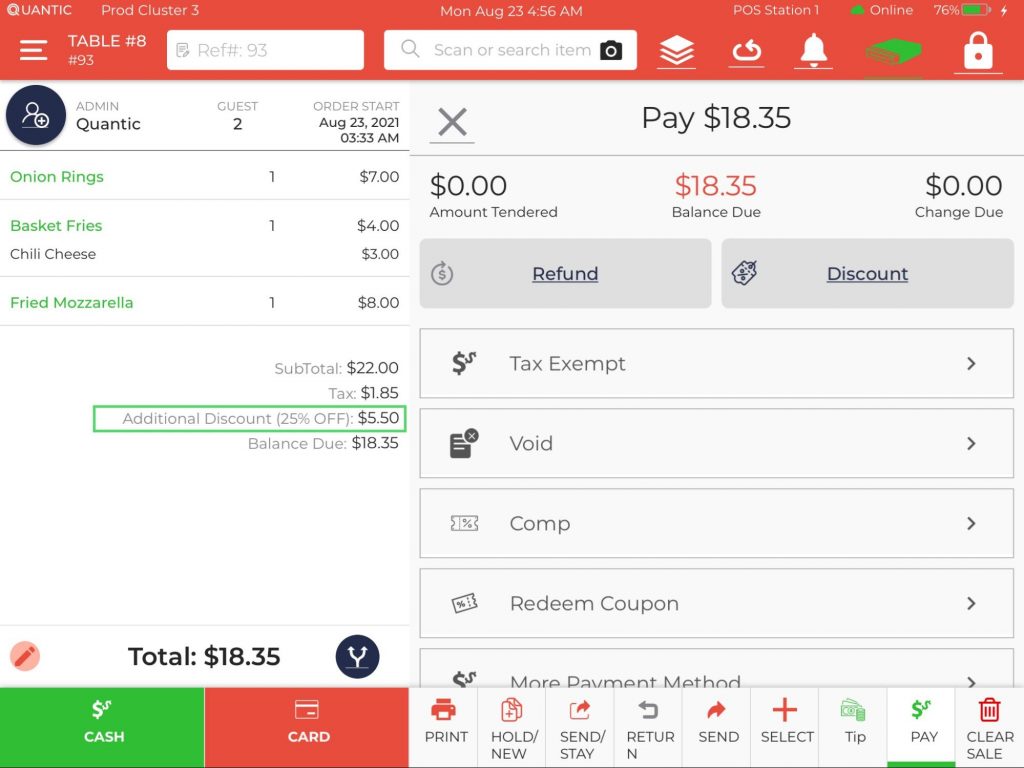
- Once done, the discounted amount will be reflected on the left, and now the customer has to pay a new balance due.