

How to Create Combo Meals in Quantic POS?
Now you can create combo meals in the Quantic POS and offer multiple items in a single meal.
For example, you can create a combo meal of a burger, French fries, and a Diet Coke.
To get started, you simply need to go to the backend portal, choose the main product, and add more items as a combo to it.
Here we are going to create a combo meal that consists of Tangent Taco + Fries + Diet Pepsi.
You can create your combo items by replicating these steps.
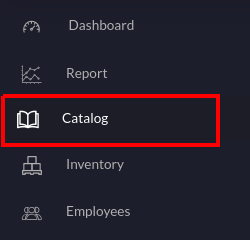
- Login to the backend portal and click Catalog on the left navigation.
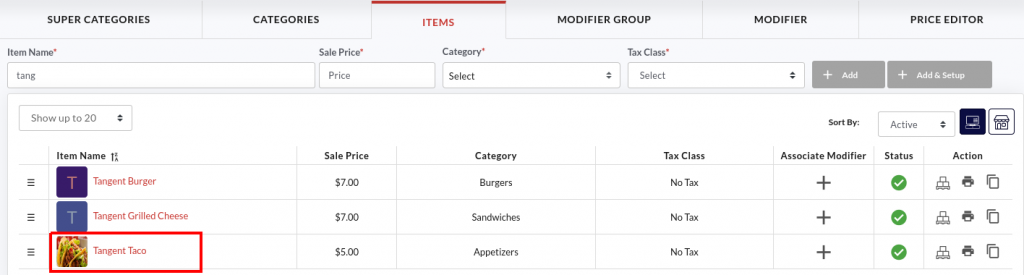
- Select the main item of your combo meal. In our case, it is Tangent Taco.
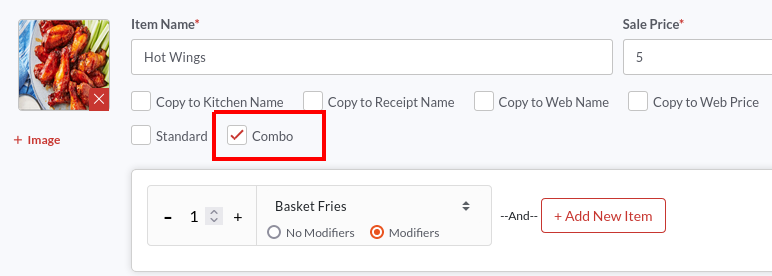
- Tap the Combo checkbox to start adding more items to this combo meal.
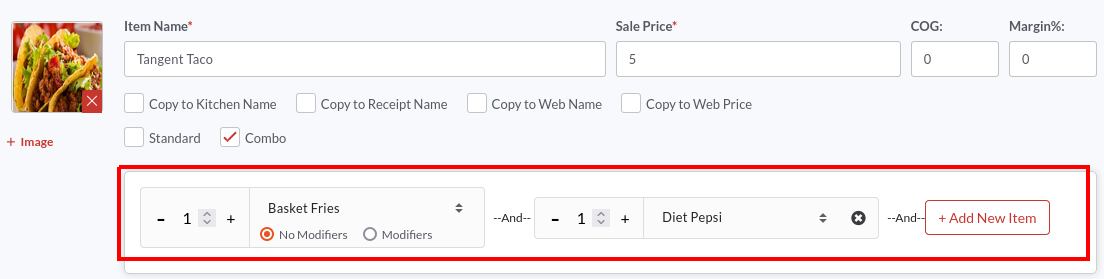
- Tap the Select Item field and select items from the drop-down.
- To add more items, click
 button. Similarly, you can create as many fields and add new items to it.
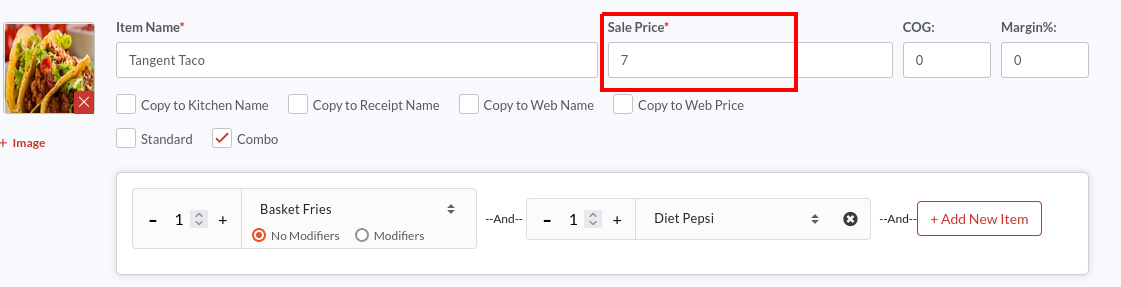
- Enter the combo meal price in the Sale Price field. Here we want our combo meal to be priced at $7.00.
- Once done, don’t forget to click the
 button to save the changes.
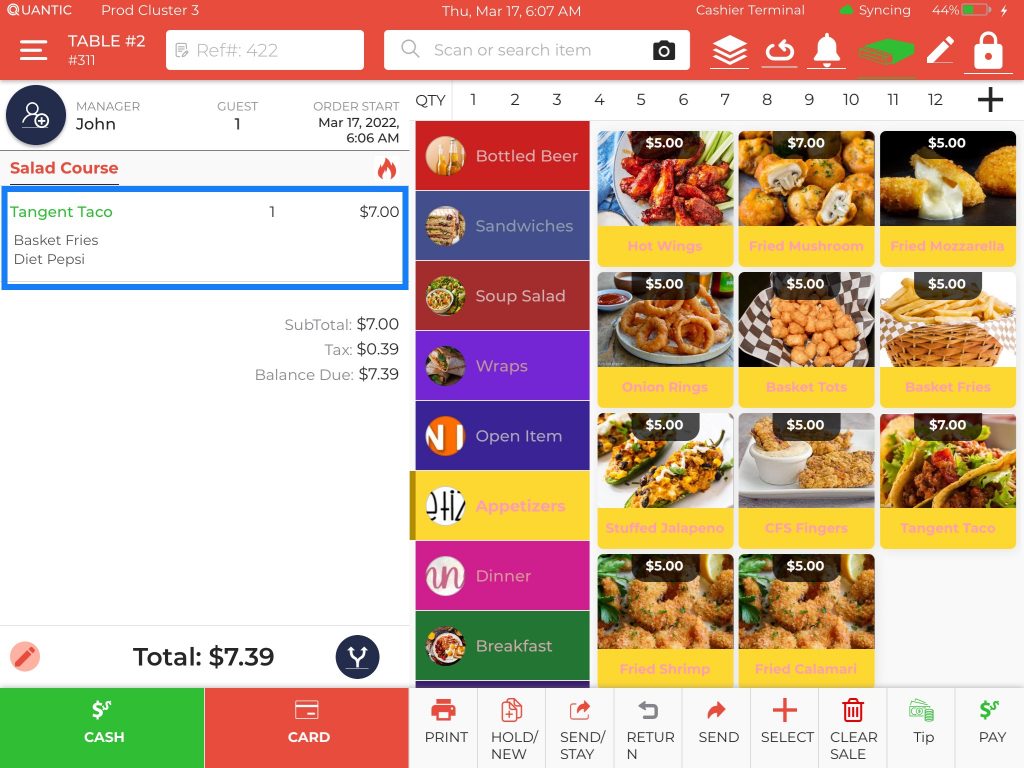
- Here the Tangent Taco is clubbed with Basket Fries and Diet Pepsi. The revised price for this combo meal is $7.00.